HaruVista user guide
Enlarge event text, add events in one line, set appointment and medication reminders, fix missing notifications, connect Google, NAVER, Outlook and iCloud calendars and your to-dos, save lunar birthdays and move your events.
In this guide, Settings is the screen that opens from the ☰ button at the top left of HaruVista.
Step-by-step guides
- View Outlook and Google Calendar togetherConnect your work Microsoft 365 and personal Google accounts in HaruVista, then check both calendars in Week view.
- Set up large text and remindersInstall HaruVista on a Windows PC, make calendar events easier to read, and set two reminders for a single appointment.
- Move calendar events to a new PCFind out where your events are stored, reconnect online calendars, and move local calendar events with an .ics file.
- See Microsoft To Do tasks on a calendarSee how to reserve time for tasks in Outlook, view team tasks in Planner, and display To Do due dates in HaruVista Week view.
Display and events
ContentsMake calendar text larger
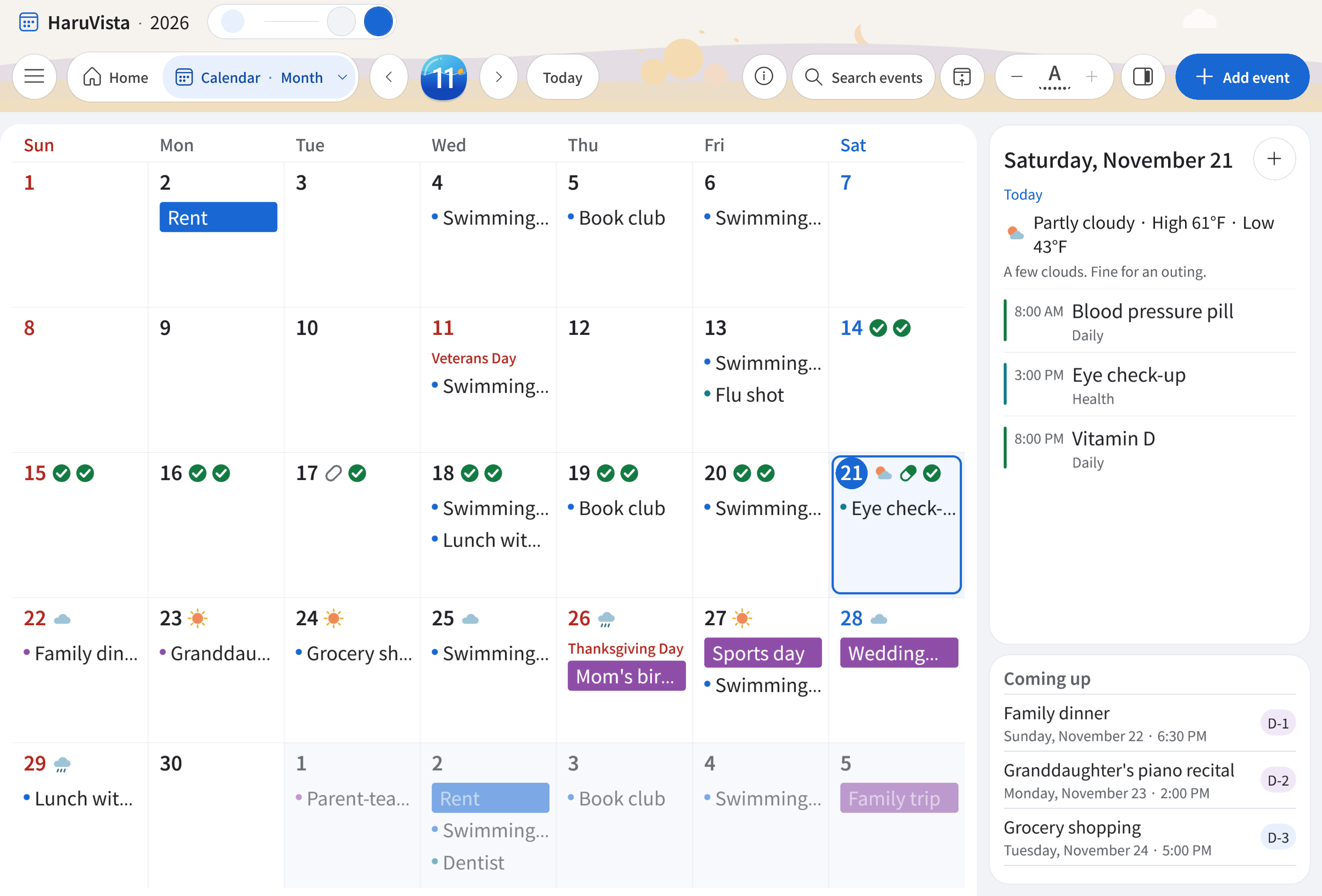
- Open the calendar in Month view from the top toolbar.
- Use + or − next to A to choose one of seven event text sizes. The date cells and menus stay in place.
Add an event in one line
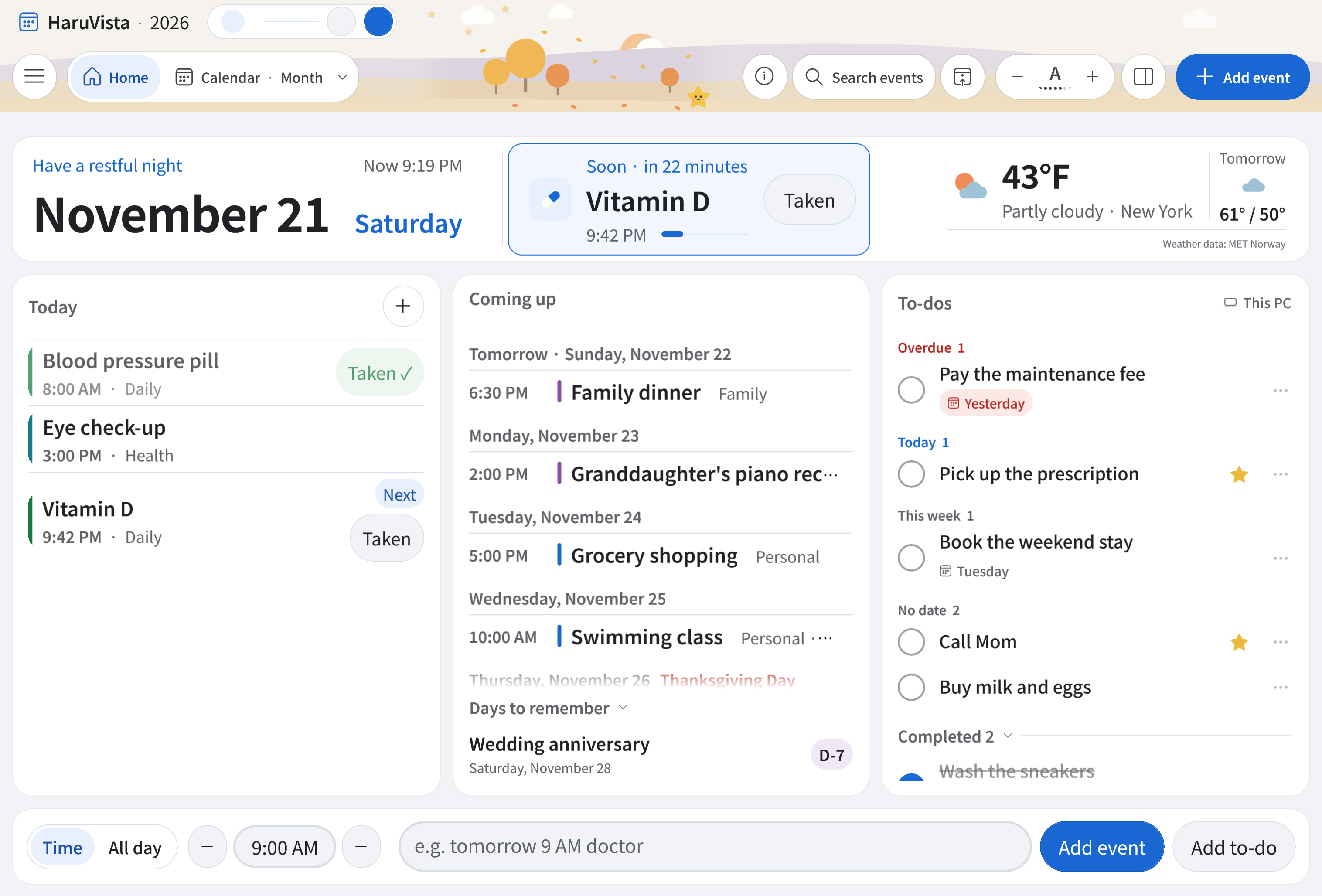
- On the Home screen, type the date, time and what it is in the Quick add box, for example tomorrow 3pm dentist.
- Press Enter or the button next to it. The event is added with the date and time filled in.
- If something came out differently, click that date in the calendar and open the event from its list to fix it.
Korean lunar birthdays and holidays
- Create a birthday event and choose Every year (lunar) as its repeat rule. Save the lunar month and day to see the event on the corresponding date each year.
- In Settings → Calendar, turn on Show lunar dates. Choose Every day to see the lunar date in every cell, or 1st & 15th for just those days. Solar terms can be turned on there too. Both follow the Korean calendar.
- Set Holiday country/region to South Korea and turn on Holidays to see Korean holidays, including substitute holidays.
If your Windows country or region isn't South Korea, lunar dates and solar terms start turned off. The Every year (lunar) repeat works either way.
Reminders
ContentsSet appointment reminders
- Choose Add event and enter the appointment name and date. Turn off All day and enter the appointment time.
- Set Reminder to one day before and Second reminder to one hour before, then save.
- Before the appointment, go to Settings → Reminders and choose Show a test reminder. Check that a Windows notification appears.
Medication reminders and records
- Choose Add event → Medication. Enter the time you were advised to take it, and choose Every day if it repeats at that time daily.
- In the Windows notification, choose Taken to record the dose, or In 10 min to be reminded again 10 minutes later.
- For one more reminder when a dose isn't recorded, turn on Remind once after 30 minutes if unlogged in Settings → Reminders. It is off at first.
- Open Settings → Data → Medicine record to review the last 7, 30 or 90 days.
If reminders don't appear
- In Settings → Reminders, choose Show a test reminder.
- If nothing appears, open Windows Settings → System → Notifications. Check that HaruVista notifications are on and that Do not disturb (Focus assist on Windows 10) is off.
- To keep getting reminders after you close the window, turn on Keep getting reminders after closing the window in Settings → Reminders. To start with the PC, also turn on Start HaruVista when the computer starts.
Reminders can't appear while the PC is off or asleep.
Calendars and tasks
- See your family's Google Calendar
- Connect NAVER, Outlook, iCloud and KakaoTalk calendars
- Sync to-dos with Google Tasks or To Do
See your family's Google Calendar
- In Settings → Calendar connections, choose Add a calendar, then Google Calendar, and select Connect Google account. When your browser opens, pick the account the family calendar is shared with, allow access, and return to HaruVista.
- On the account’s card under Calendar connections, switch the calendars to show on or off. To choose where new events go, select Manage beside Google Calendar and pick one under Calendar for events you add here.
Connecting is optional. You can keep events on this PC only, without a Google account.
Connect NAVER, Outlook, iCloud and KakaoTalk calendars
In Settings → Calendar connections, choose Add a calendar and pick the service.
- NAVER Calendar under Manage in NAVER’s 2-step verification settings, choose Outlook (아웃룩) as the application type and generate an application password. Enter your NAVER ID and that password in HaruVista and choose Connect NAVER Calendar. Your sign-in password is not used.
- Outlook calendars choose Add Microsoft account and sign in with your Outlook.com or work Microsoft 365 account in the browser. A work account may need approval from your IT administrator.
- iCloud Calendar generate an app-specific password in your Apple Account, then enter your Apple Account email and that password and choose Connect iCloud.
- KakaoTalk Calendar in KakaoTalk, go to More → Calendar → Menu → Settings → Manage calendars, create the calendar’s iCal address and paste it. KakaoTalk Calendar events are read-only.
Once connected, switch the calendars to show on or off on the account’s card under Calendar connections. Disconnecting leaves the events in the original service.
Sync to-dos with Google Tasks or To Do
- On Home’s to-do card, select This PC at the top.
- Under Choose task sync, pick Google Tasks or Microsoft To Do, then sign in with your account in the browser and allow access.
- With two or more lists, list buttons appear at the top of the card; select one to switch. Create a list with New list, and right-click a list button to rename or delete it.
Choosing This PC again only pauses sync. Disconnect removes the copies on this PC; the tasks stay in the original service.
Move or back up your events (.ics)
- Export your events as a calendar file (.ics) from your previous calendar app.
- In HaruVista, go to Settings → Data, find Import from a file, and choose your .ics file.
- Imported events are saved on this PC. Check recurring events in the calendar to make sure their dates came through as expected.
To move the events you made in HaruVista to another PC or keep a copy, use Export to a file in the same place.
When the free trial ends
- After the trial, you can still view your events and get reminders. Adding or changing events needs the full version.
- In Settings → Plan & app info, choose Buy to pay in Microsoft Store. You pay once; there is no subscription.
- If you received a promotional code, choose Redeem with Microsoft under Promotional code in the same place.