Connect the two accounts
- Open Settings from the top-left ☰. In Calendar connections, open Add a calendar or Manage, then choose Add a calendar in the panel.
- Open Outlook calendars from the add menu or, if Outlook is already connected, from Manage. Select Add account and sign in to your work Microsoft 365 account in your browser.
- Go back to Add a calendar, choose Google Calendar → Connect, and sign in with your personal Google account. If Google Calendar is already connected, open it from Manage and choose Add account.
- In Calendar connections, turn on the calendars you want to see under each account.
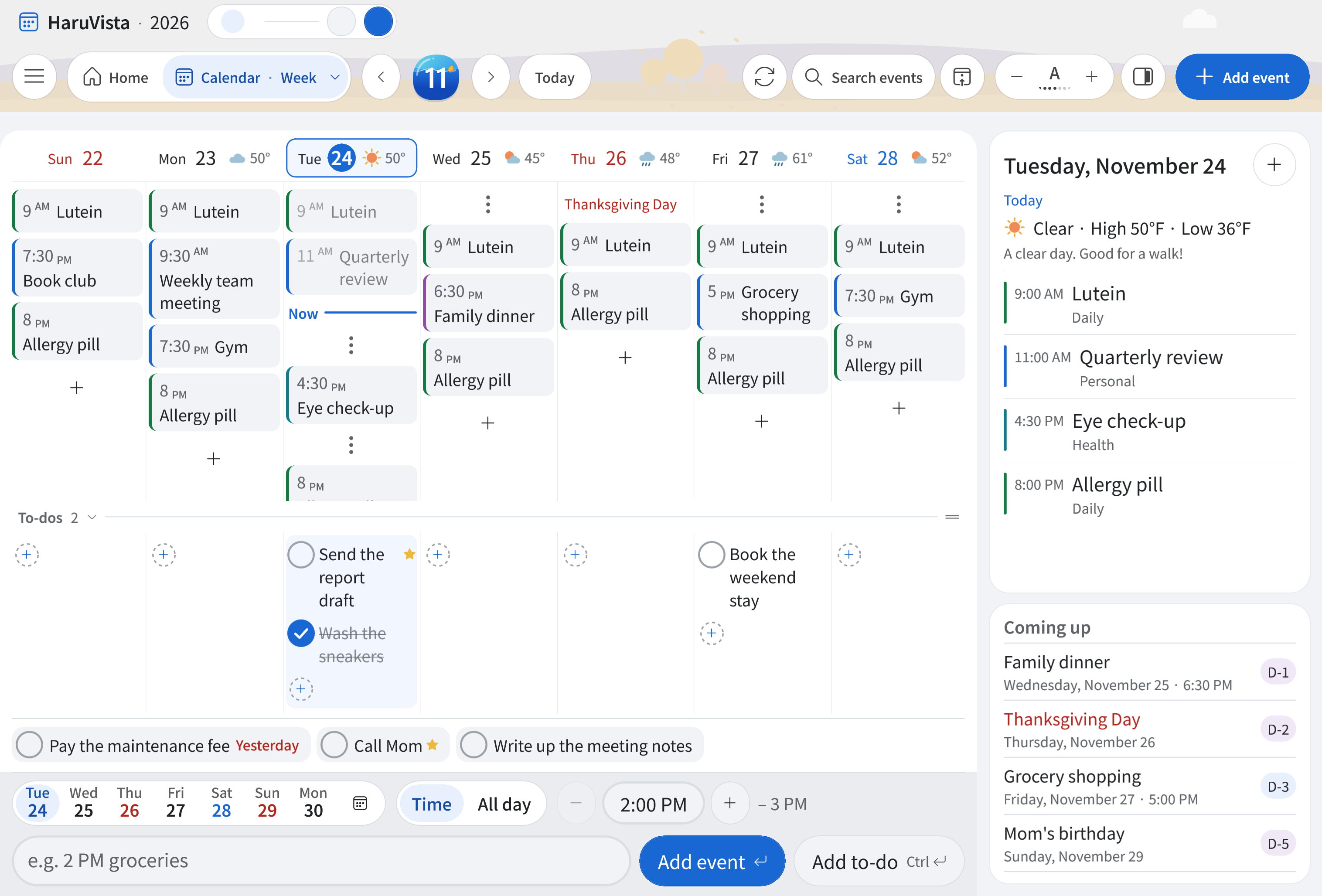
Check both calendars in Week view
Open Calendar → Week or press Ctrl+2. Find one work event and one personal event in the original calendars, then check the same week in HaruVista.
When creating an event, choose the calendar where it should be saved. Shared Outlook calendars and Outlook meetings you were invited to are read-only in HaruVista.
If a calendar or event is missing
- If Microsoft asks for admin approval, check with your organization’s IT team.
- If only some events are missing, check which calendar holds them in Outlook or Google Calendar. Make sure that calendar is on in HaruVista.