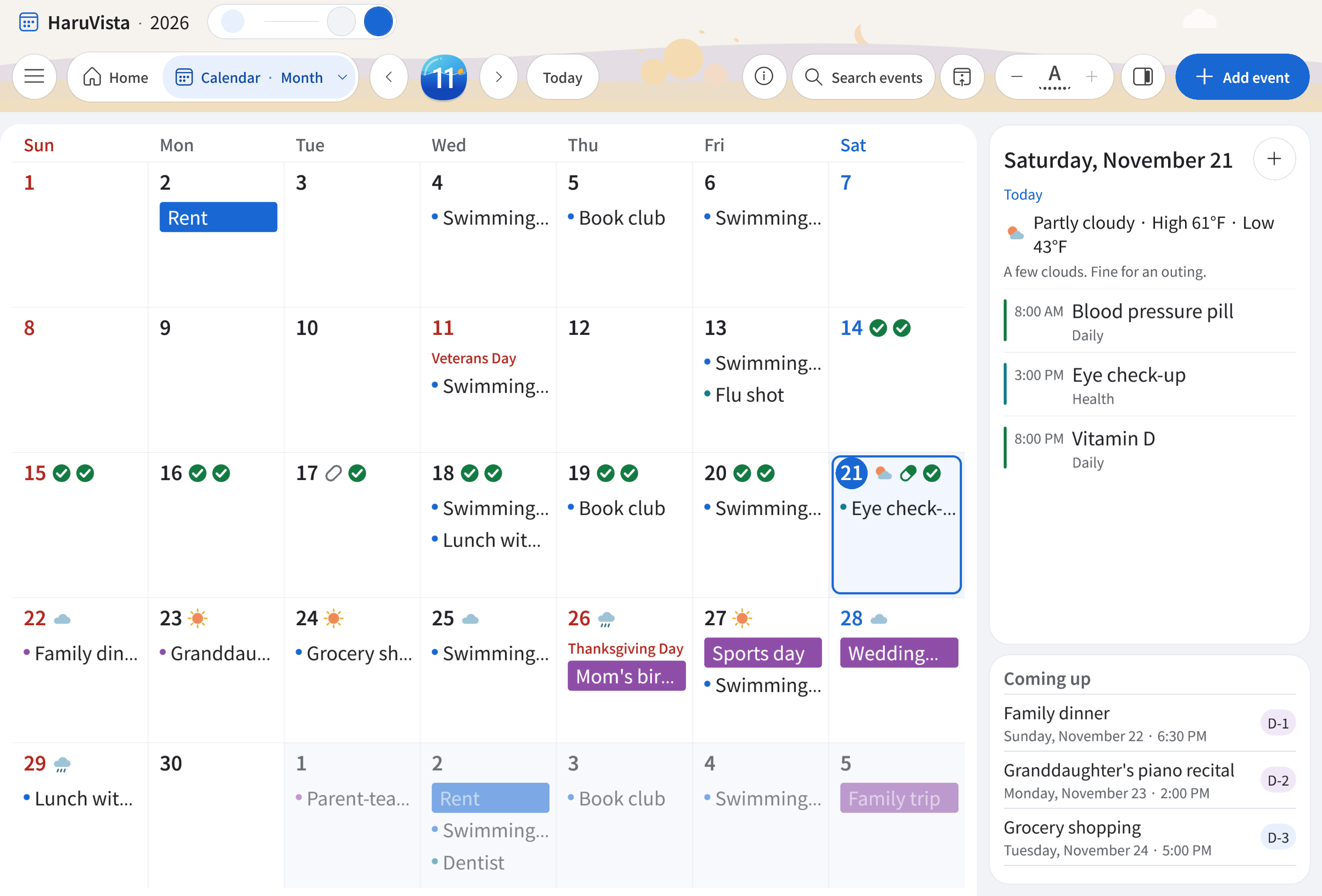
Set a comfortable text size
- Install HaruVista from the Microsoft Store on your parent’s Windows PC.
- Open Calendar → Month. Use the + next to the A at the top to make the event text larger.
- Ask your parent to read a longer event name from where they usually sit. Use − or + to adjust the size with them.
Add two reminders to one appointment
- Select Add event and enter the appointment name and date. Turn off All day and set the start time.
- Set Reminder to one day before and Second reminder to one hour before. If you need more travel time, set the second reminder earlier.
- Save and reopen the event from the calendar to check the time and both reminders.
Test reminders on your parent’s PC
In Settings → Reminders, choose Show a test reminder. Check for both the HaruVista reminder and the Windows notification.
To keep receiving reminders after closing the app window, turn on Keep getting reminders after closing the window. The PC needs to be on and awake. If the test does not appear, check the Windows notification settings.