Find due dates in Microsoft To Do
If your meeting materials are due Friday, you might want to see what else is due that day. If you need time to prepare them on Thursday, you can reserve a time on your calendar.
The Microsoft To Do Windows app we checked on November 24, 2026, had no weekly or monthly calendar grid. Open Planned in the sidebar to see tasks due today, tomorrow, and later. Microsoft calls this the Planned smart list. Microsoft’s guide to due dates
See tasks beside your Outlook calendar or reserve time for them
Sign in to To Do and Outlook with the same Microsoft account to see your to-dos in Outlook Tasks. Setting a due date in To Do does not by itself reserve time on your calendar. Using Microsoft To Do with Outlook Tasks
- Open Calendar in Outlook.
- Open My Day in the top toolbar and select the To Do tab. In the Korean Outlook web session we checked, My Day was under the top-right ⋯ menu. Microsoft documents My Day in both new Outlook for Windows and Outlook on the web.
- To reserve time, drag a task onto the calendar. If “Send meeting materials” is due Friday, drop it at 2 p.m. on Thursday to create an Outlook event for that time.
Microsoft describes this action as creating a calendar event. We did not test whether that event updates after you complete the task or change its due date. To move the time you reserved, open the event in Outlook Calendar and edit it there. Use My Day in Outlook · Drag a task to your calendar
In classic Outlook, go to Calendar → View → Layout → Daily Task List to show tasks below the calendar. View tasks in classic Outlook
See your team’s Planner tasks by week or month
For work or school accounts with a basic Planner plan, Microsoft describes a Calendar view that shows the plan’s tasks by start date and due date. Switch between Week and Month to see how the work is spread out.
Microsoft also documents Add plan to Outlook calendar in the drop-down menu for a basic plan or My Tasks. Outlook subscribes to the tasks as an iCalendar feed. We did not verify whether this menu appears in a signed-in organization account. Use Calendar view in Planner · Compare plan features · Add a plan to Outlook Calendar
See To Do due dates below events in HaruVista Week view
- On Home, select This PC at the top of the To-dos card.
- Under Choose task sync, select Microsoft To Do. Sign in with your Microsoft account in the browser and allow access. A work account may require administrator approval under your organization’s policy.
- Pick the list you want to see, then open Calendar → Week view. To see Outlook events there too, connect your Outlook calendar separately.
We confirmed that tasks from the connected To Do list appeared below the events on the day they were due. Overdue and undated tasks that are still open appear in the bottom row.
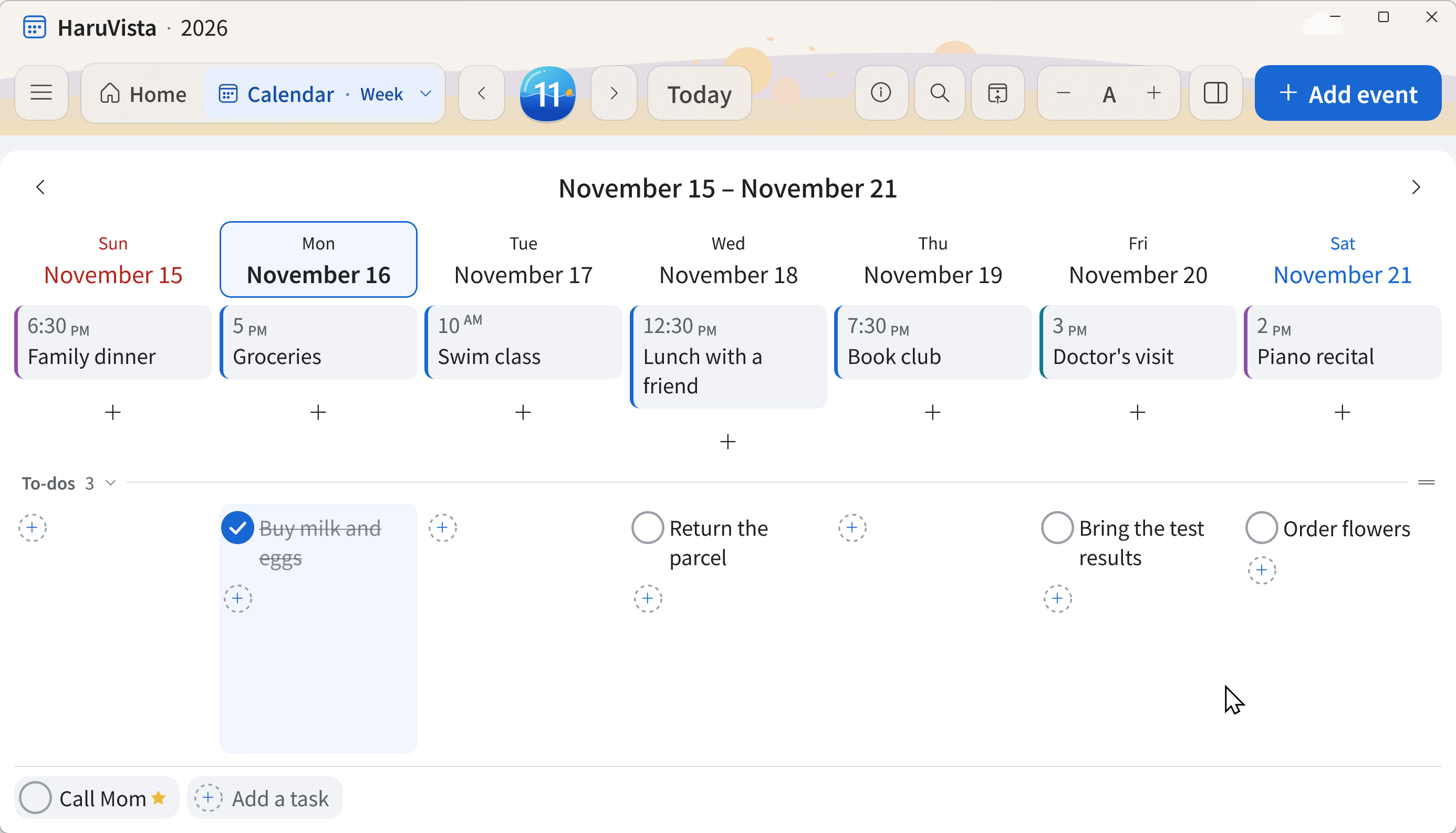
The app’s sync code exchanges changes to titles, due dates, importance, and completion status in both directions. The Home card shows notes, checklist progress, and reminder times. Edit those three details in Microsoft To Do. HaruVista privacy policy
With Microsoft To Do selected as the task source, drag an event into a day’s to-do area to create a task due that day in the selected list. Drop it in the bottom row to create an undated task. Some events are removed from the calendar by default when converted. Hold Ctrl while dragging to keep the original event.
Switch to This PC to pause sync. If you select Disconnect, the original tasks stay in Microsoft To Do. Connect tasks and switch lists
When the Microsoft To Do apps retire
Microsoft says the To Do apps will retire on June 30, 2027 for personal, work, and school accounts. Work and school users can manage personal work tasks in Planner. Existing To Do tasks and lists will not migrate automatically to the new private Planner plan. Planner is unavailable for personal Microsoft accounts. Connections that other apps use to access To Do tasks will continue past the app retirement date. Microsoft says it will give separate notice before retiring those connections. Microsoft’s To Do transition guide · Microsoft’s announcement about external connections